Tuesday, November 27. 2012
Smart light socket lets you control any ordinary light via Wi-Fi
Via DVICE
-----

Internet-connected devices are clearly the future of controlling everything from your home to your car, but actually getting "the Internet of things" rolling has been slow going. Now a new project looks to brighten those prospects, quite literally, with a smart light socket.
Created by Zach Supalla (who was inspired by his father, who is deaf and uses lights for notifications), the Spark Socket lets you to connect the light sockets in your home to the Internet, allowing them to be controlled via PC, smartphone and tablet (iOS and Android are both supported) through a Wi-Fi connection. What makes this device so compelling is its simplicity. By simply screwing a normal light bulb into the Spark Socket, connected to a standard light fixture, you can quickly begin controlling and programming the lights in your home.
Some of the uses for the Spark Socket include allowing you to have your house lights flash when you receive a text or email, programming lights to turn on with certain alarms, and having lights dim during certain times of the day. A very cool demonstration of how the device works can be tested by simply visiting this live Ustream page and tweeting #hellospark. We tested it and the light flashed on instantly as soon as we tweeted the hashtag.
The device is currently on Kickstarter, inching closer toward its $250,000 goal, and if successful will retail for $60 per unit. You can watch Supalla offer a more detailed description of the product and how it came to be in the video below.
Monday, November 26. 2012
A Few New Things Coming To JavaScript
Friday, November 23. 2012
Mobile maps showdown
Via TechHive
-----
Google has enjoyed a considerable head start on the mobile-mapping front, but Apple and Microsoft haven’t been idle. Both companies have licensed data from a number of services to flesh out their competing map offerings in an effort to bolster their respective phone platforms and chip away at Google’s dominance.
But there’s more to a map than getting users to and from work: We rely on maps to figure out where we are, to find new places, and to plan trips far beyond our local haunts. Here's a look at which mapping service offers the best features and functionality.
A tale of three map apps
Google Maps
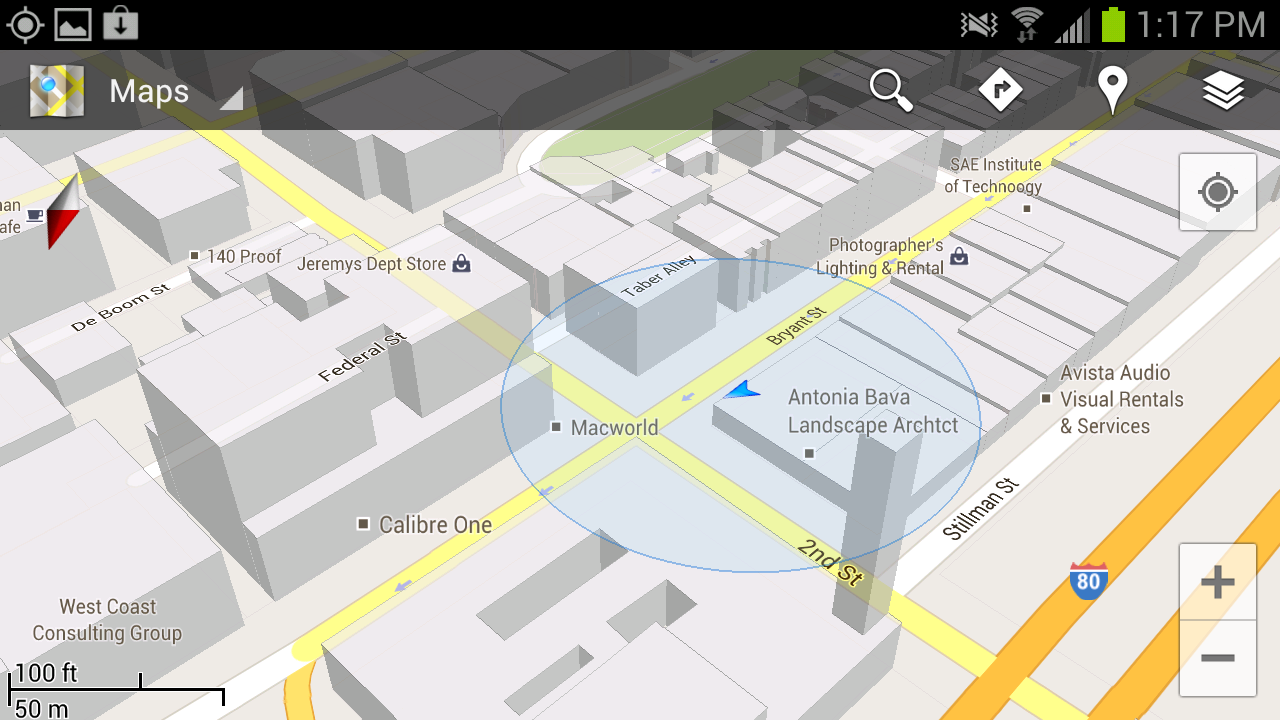
Google Maps’ greatest strength lies in its robust search capabilities: Throughout my testing I found that I could type in a location and (generally) find the business or landmark I was seeking, whereas Apple and Windows Phone often required me to add a city to my search query. Google Maps also offers a killer feature in the form of Street View. If you’ve ever used Google Maps in a browser, you’re likely familiar with the little yellow Pegman avatar that gives you a first-person view of the location you’re searching for. It’s incredibly useful, providing a clear idea of where you’re heading before you ever arrive.
The robust direction options are another killer feature. All three mapping services offer directions by car and on foot, but only Google includes public transportation and biking directions. Public transit results can be hit or miss, however—many users have reported that bus schedules and the like don’t necessarily line up with reality, though I’ve had pretty good luck while using the service in San Francisco.
Google Maps’ Places functionality serves as a sort of neighborhood-savvy guide: You just tap the pin icon on the map for a list of places nearby, and filtering options let you limit searches to locations that are currently open, fit into a particular price range, or have a minimum review score. Finally, Google Maps displays reviews that its users have posted for most every establishment you could search for, from restaurants to police stations.
Apple Maps
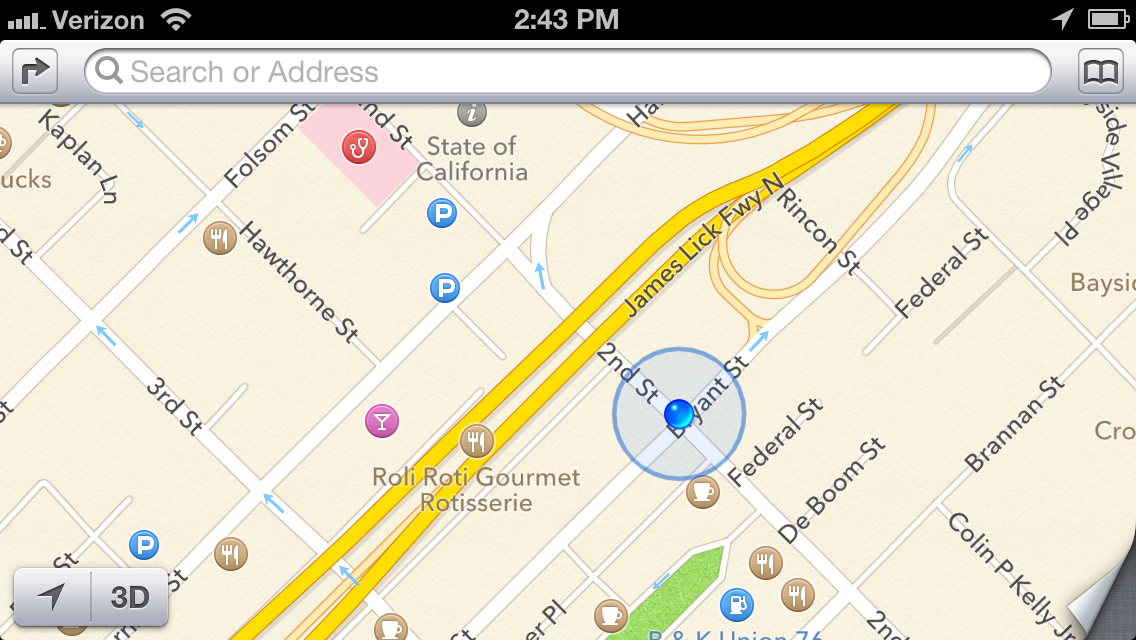
Apple’s flyover view is a novel and admittedly attractive attempt at emulating Google Street View, but ultimately it falls flat. The vector-based maps certainly are eye-catching; but unless you’re actually planning on flying a small plane over your destination, the view won’t offer much in the way of utility. And let’s not forget the often comical rendering issues that are the subject of at least one Tumblr blog, where bridges appear to melt into the landscape and some landmarks disappear entirely. Apple is working on correcting many of these issues, but they do mar Apple Maps’ presentation.
Apple has tapped into Yelp’s massive user community to find locations and power its reviews, and that’s a powerful asset in places with an active Yelp community. Unfortunately, Yelp’s business listings are mostly limited to larger cities in the United States, so you’re out of luck if you’re traveling through smaller towns or internationally. Tapping a business name in the Apple Maps app kicks you out of Maps and into the Yelp app—if you don’t have it installed, you’ll be prompted to get it. Swapping between apps can make casual browsing a bit annoying, but Yelp user reviews are decidedly more numerous and robust than Google’s similar offerings.
Windows Phone 8
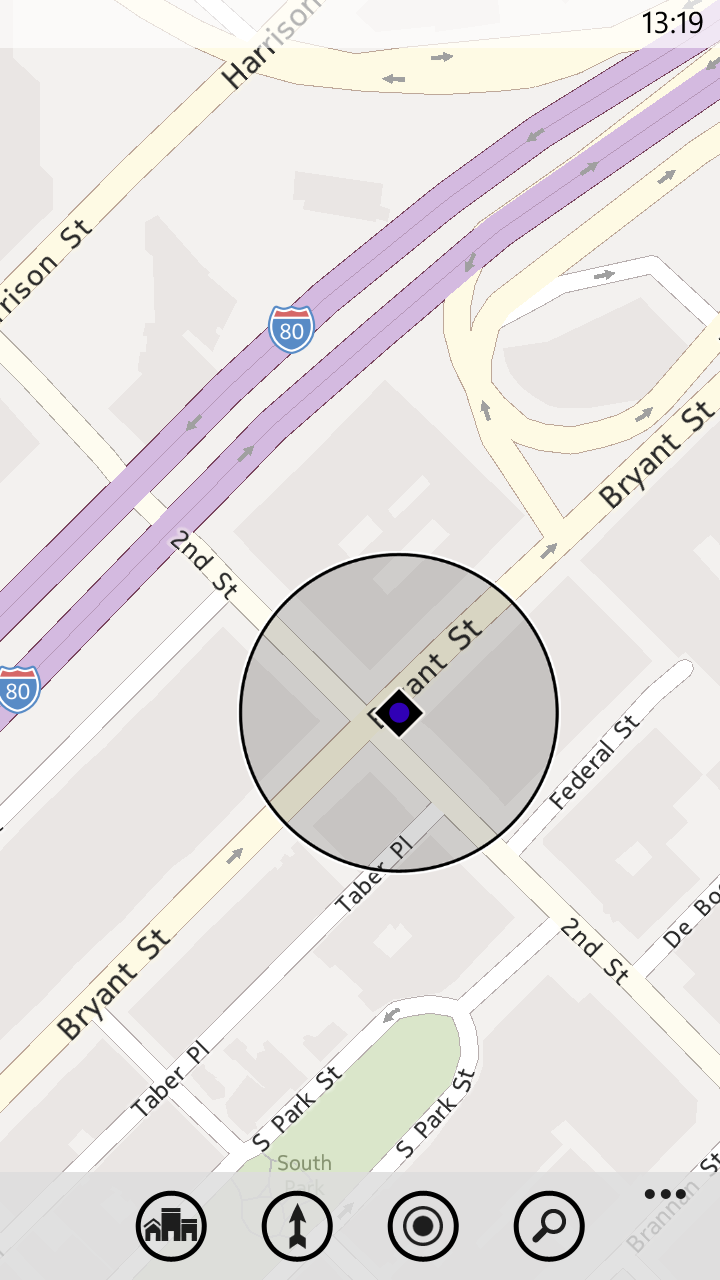
Windows Phone 8 uses Nokia’s mapping engine, but the native Maps application isn’t nearly as robust as the Nokia Drive app currently offered exclusively to Nokia Lumia owners. The Maps app on Windows Phone 8 is ultimately the most limited of the bunch: Although it pulls reviews from sites such as Citysearch and TripAdvisor to fuel its Buzz section, the app lacks photos or any sort of Street View analogue. The Buzz section also has far fewer reviews than Yelp or even Google, which can limit its utility at times.
Windows Phone Local Scout is a bit like Google Places, but Microsoft's offering takes top honors. It scans the area around you (or the location you’ve searched for), and lists establishments that are nearby. Results are divided into four categories. 'Eat + Drink' covers bars and restaurants, while the Shop section covers, well, shops. The sections serve up business hours, contact information, and the average ratings assigned by Citysearch and TripAdvisor users. The filtering options are fairly extensive; you can, for example, limit results to restaurants that are open and serving a particular cuisine, or hardware stores that are currently offering deals. The 'See + Do' section lists nearby upcoming events and places of interest—though the unfiltered list is a bit impractical if you’re exploring casually, with museums and art galleries listed alongside New Year’s Eve parties and high school reunions. Finally, there’s the For You section, which couples data from Bing and Facebook to guess what sorts of venues you might be interested in; my suggestions were largely limited to bars, which makes sense based on my admittedly sparse Facebook check-in history.
Offline Maps
A final useful feature that all three services provide is offline maps. Apple’s implementation is rudimentary: Once you've visited a location on the map, it and the surrounding areas are cached automatically to your device. You won’t be able to search without Wi-Fi or cellular service, but the streets, businesses, and landmarks are preserved in all their vector-mapped glory.
If you’re planning in advance, the latest version of Google Maps will let you make sections of a map available offline. Just tap the menu button, choose make available offline, and select a section of the map you’d like to preserve. Alternatively, you can select My Places from the Maps menu, choose new offline map, and search for a city to download a snapshot. The service will tell you exactly how much space the map will take up (in my tests the San Francisco Bay Area claimed approximately 35MB of storage space), and then it will download the section you’ve selected. Unfortunately, you can't search the map without a data connection.
Windows Phone’s brute-force approach is actually my favorite implementation: You can download entire maps from a number of regions around the world. Although they take up considerably more space (California weighs in at just shy of 210MB) and you lose out on most of their satellite imagery, you’ll have full search and navigation functionality—even in areas with a spotty data connection.
Search shootout
How do the three services stack up when it comes to finding places you’d like to visit? I did some testing to find out. My testing method was rather simple: I typed in the name of a business or landmark, and examined the results. I’ll start with businesses in San Francisco, home to TechHive headquarters.
House of Shields
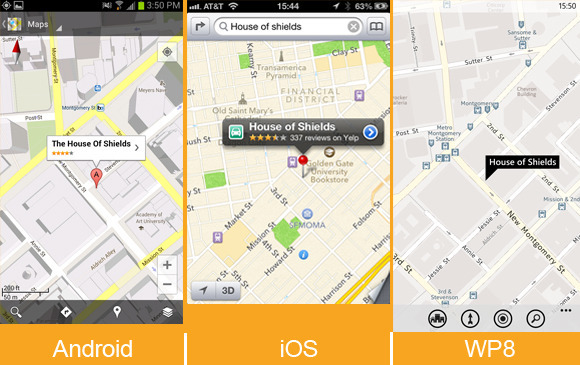
House of Shields is a fairly popular watering hole in the middle of downtown San Francisco, and (as expected) all three phones had no trouble finding it and serving up all of the information I could want. Windows Phone 8’s Buzz section really excelled here, offering a concise breakdown of user reviews. It didn’t have very many reviews, unfortunately. If you’re walking about with friends and trying to get a general idea of a bar’s ambiance, however, the snippets it serves up are arguably more useful than an average user rating from Yelp or Google.
Tomales Bay Oyster Company
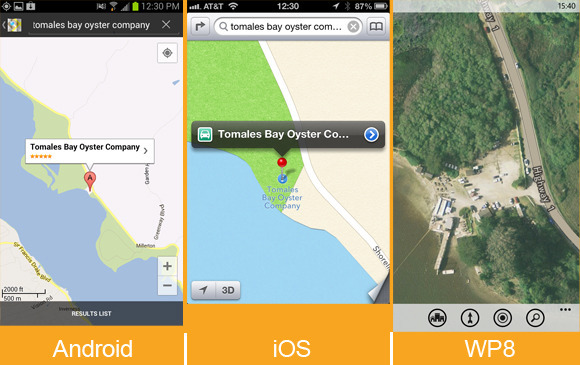
Tomales Bay Oyster Company is a small but lively oyster farm and picnic area located north of San Francisco. It’s a great place to go if you’re craving fresh oysters, looking for a beautiful view, or testing a phone’s mapping app. Google and Apple found the business just fine, pointing their maps to the same isolated turnoff that hosts this delectable little dining spot. Both services offered the restaurant’s phone number, but Google Maps went a bit further, serving up user-submitted photographs of the location, the restaurant’s website and business hours, and reviews from Google Maps users. Windows Phone couldn’t find the business at all, even when I punched in the address and searched for items of interest in the area. I could spot the picnic area by zooming in on the map’s aerial photography, but that kind of information won’t be of much help to most people.
State Bird Provisions
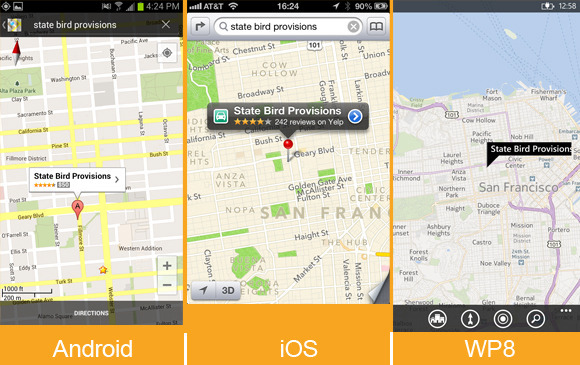
Both iOS and Google Maps found this relatively new restaurant with ease, supplying reviews, contact information, and business hours. On Windows Phone 8 I had to add "San Francisco" to my search before I found the location, and the results included only a phone number and a link to the website.
San Francisco’s results are nice, but I also branched farther out in my testing.
Totonno’s Pizzeria Napolitano (New York)
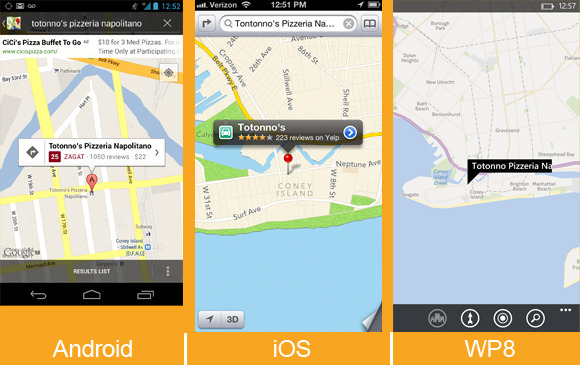
Totonno’s Pizzeria Napolitano is a well-regarded pizza joint in New York, and Google Maps found it effortlessly. Finding the restaurant on iOS required adding "New York" to my search query, but Apple's map turned up all of the necessary information with plenty of photos from Yelp (Google Maps offered only two). Curiously, unless I was looking directly at a map of New York, the Maps app on Windows Phone 8 couldn’t track the restaurant down at all. Once it found the establishment, it gave the necessary contact information and store hours, but served up decidedly fewer user reviews (and no photos).
Citizen Coffee (Seattle)
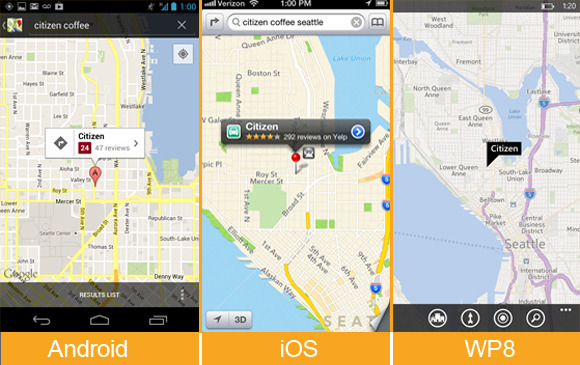
What about a place that's a little less renowned? Citizen Coffee, a cozy coffee shop and eatery in Seattle, is a spot I’ve wandered into a few times while traveling. Google Maps’ search functionality shone on this test, narrowing the location down with ease. On Apple Maps, I needed only to add "Seattle" to my search query to find the place, and the Yelp support produced a lot of photos that gave a nice idea of the variety of food, as well as the ambiance of the establishment. (I still loathe the fact that you need to jump out of the Maps app entirely to check them out, however.) The location was just as easy to find on Windows Phone (once I’d added "Seattle" to my search query), but Windows Phone’s Buzz category once again offered just a few token reviews, and lacked images.
Sukiyabashi Jiro (Tokyo)
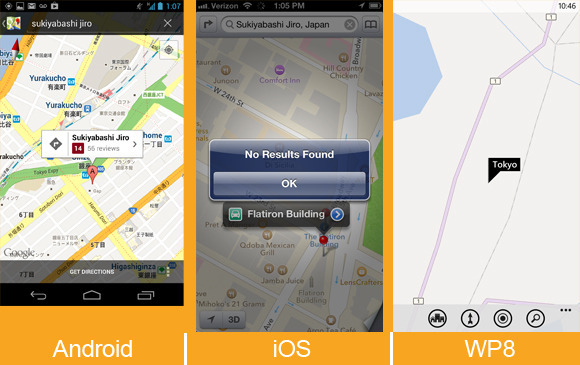
Branching out farther still, I headed to Japan to track down Sukiyabashi Jiro. The restaurant is the subject of the excellent documentary film Jiro Dreams of Sushi, and I assumed that it would be rather easy to track down. Alas, Yelp’s services don’t extend to Japan, so Apple Maps’ offerings for that country are limited to addresses and phone numbers—I couldn’t find Sukiyabashi Jiro at all. Windows Phone 8’s map of Tokyo (and wide swaths of Asia, actually) is barren, lacking even basic information or street names. Unsurprisingly enough, Google Maps delivered in my test, offering the correct address, contact information, and some user reviews.
Tracking down business listings in distant cities and foreign countries can prove tricky for iOS and Windows Phone, which rely on licensed services from third parties that don’t have as exhaustive a reach as Google does. I had no such trouble with famous landmarks, though Google Maps’ general location-savvy again made it the most useful of the bunch—most of the time.
Taipei 101 (Taipei, Taiwan)
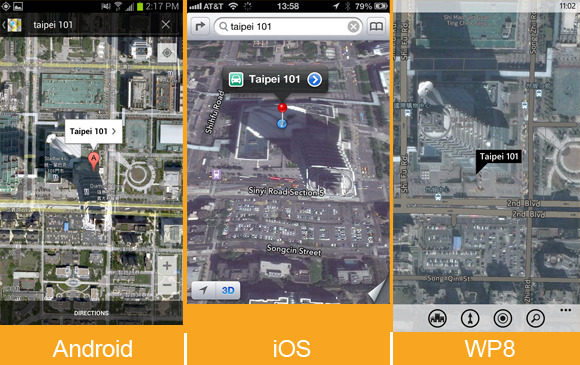
In my quest to find famous landmarks, I started with Taipei 101, the world’s second-largest building. The search took a bit of extra effort on Windows Phone: Oddly, the only query that worked was “Taipei 101, Taipei.” That said, all three services ultimately found the landmark, though only Google Maps provided listings for many of the businesses in the area.
Sydney Opera House (Sydney, Australia)
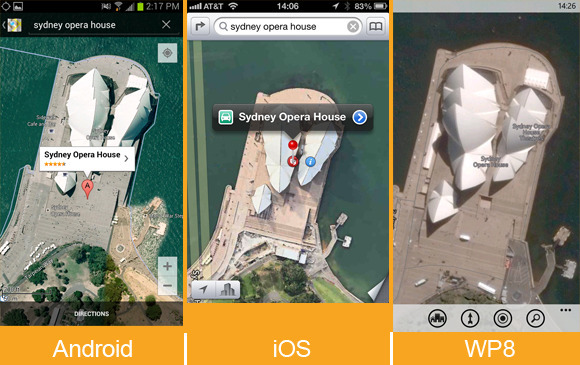
I had better luck tracking down the Sydney Opera House, though Windows Phone 8’s map directed me a few miles southwest of the actual landmark. It’s easy enough to pan over to the site (which is labeled correctly), but Google and Apple Maps both sent me to the right spot on the first try.
Flatiron Building (New York)
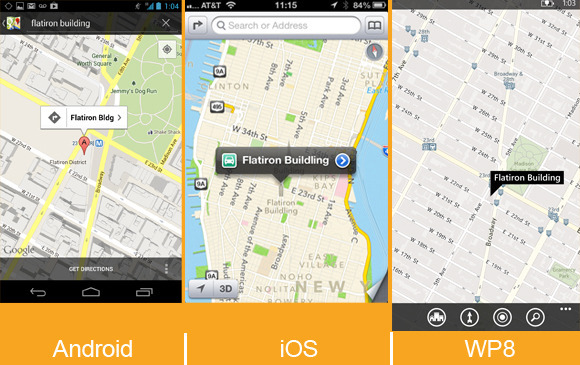
Searching for the iconic Flatiron Building was simple on both Apple Maps and Windows Phone; on iOS’s standard map view, all of New York’s landmarks are helpfully labeled and granted large, distinct icons, which makes casual browsing a breeze. Google initially tried to direct me to The Flatiron Group, a business situated a few blocks south of the landmark, but I was able to locate the building eventually by selecting it from a list of search suggestions.
Fenway Park (Boston)
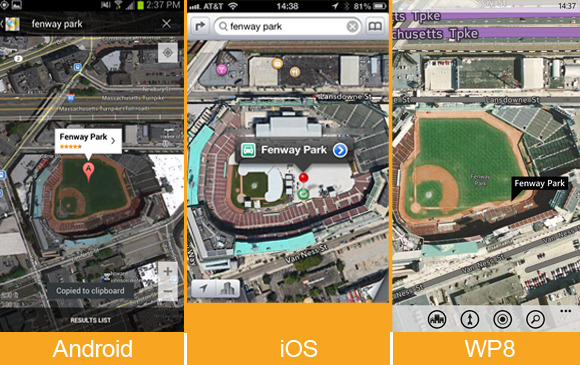
All three mapping services had no trouble finding Fenway Park, home of the Boston Red Sox. Once you arrive at the park (virtually), Windows Phone’s Local Scout offers the easiest way to find nearby establishments; although you can do a generic search on Apple and Google Maps, I appreciated being able to scan a list of interesting locales near the ballpark.
Turn-by-turn navigation
Competent turn-by-turn navigation is a must-have feature for anyone who hopes to rely on a phone to get around. Unfortunately, Windows Phone 8’s native Maps app currently lacks support for it. If you own a Nokia Lumia phone, you have access to Nokia’s free Drive app, and the Windows Phone store offers free and paid alternatives for other Windows Phone devices.
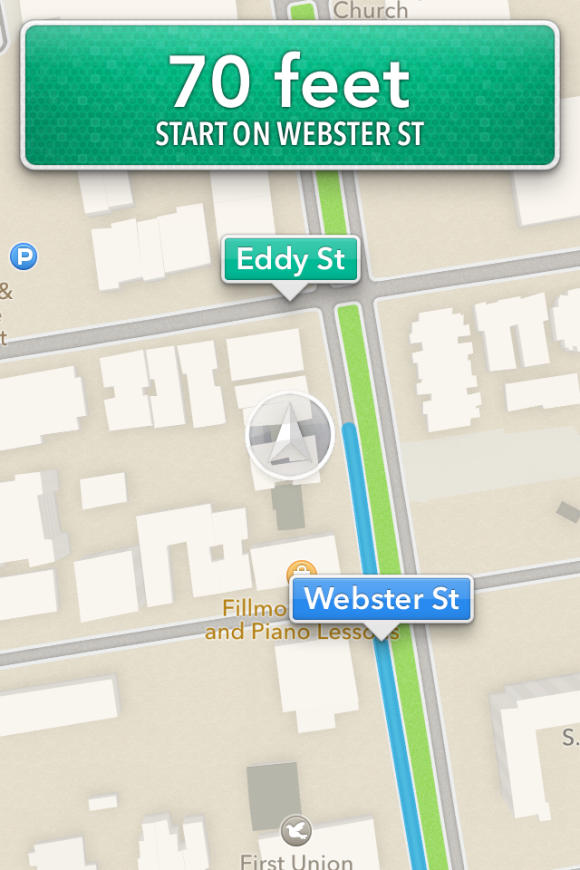
That leaves Apple Maps and Google Maps, two excellent offerings with slightly different implementations. In my tests both services gave accurate directions: The suggestions and even the alternative routes they served up were generally similar (in San Francisco, at least). Miss a turn, and both apps’ robotic narrators will rapidly update their instructions to get you back on the right track. Both will keep you abreast of traffic conditions, and will suggest new routes if the situation looks especially bleak.
The Maps app on iOS provides turn-by-turn navigation if you’re running the latest version of iOS and using an iPhone 4S or iPhone 5 (or an iPad 2 or later). The accuracy of the driving directions is on a par with that of Google Maps, but the focus on hands-free simplicity can be a double-edged sword. Setting up a route is easy: Search for a location, select the car icon, and tap the route button, and Siri will begin to relay driving instructions.
If you’re focused on getting from point A to point B, this arrangement can be handy; the phone essentially becomes locked to the current step on the list of directions to your destination, ignoring all inputs on the touchscreen unless you leave the app, and even showing directions on the phone’s lock screen. You need to tap the overview button to interact with the map, pausing the route in progress; it’s a small issue, but being able to pan about the map without interrupting directions can be useful if you’d like to gauge traffic congestion in the area or keep an eye out for gas stations and the like on the fly.
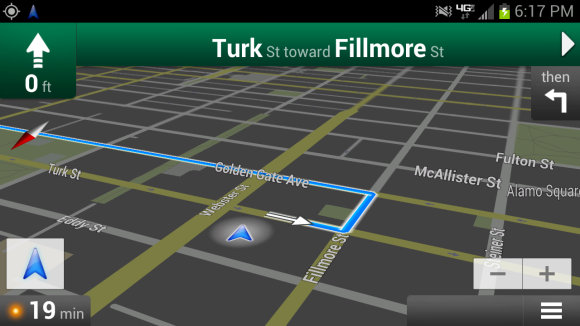
Google Maps shines in navigation. When you’re in navigation mode, the map continues to function normally, so you (or ideally, someone who isn’t driving) can scan for alternative routes or use the layers menu to plot landmarks such as ATMs or gas stations on the map. Google Maps also allows you to create routes that avoid highways and tolls, a simple but useful feature that Apple and Windows Phone would do well to emulate.
Truth be told, my only real qualm with Google Maps’ navigation is the awkward overhead angle the app chooses to relay directions. The angle can make it a bit difficult to quickly parse the names of upcoming cross streets and side streets without panning over them on the map, and futzing with your phone isn’t advisable when you’re driving.
Which one is the winner?
The clear "loser" here is Windows Phone 8, but the maps are largely a victim of the operating system's own infancy. The services can only improve with time, as users add reviews and report errors. The Maps app is constantly evolving, and features such as turn-by-turn navigation are reportedly on the way. I do love Windows Phone’s minimalistic presentation and free map downloads. Local Scout is also arguably the best way to explore a new area, but Microsoft's aerial photography and satellite images are lackluster in comparison with the competition, and the overall feature set is limited.
That leaves Google and Apple. iOS’s Maps offering has improved considerably since leaving Google’s mapping data behind, but the reliance on Yelp integration leaves much to be desired for users around the world—to say nothing of the need to switch apps to see most of the information you’re looking for. Apple’s stylish new vector maps are admittedly gorgeous, but offer no real utility; I also found it a bit too easy to slide into the skewed 3D perspective when I was trying to zoom in on a map, which can be a bit disorienting.
Unsurprisingly, Google Maps takes the crown. It offers the best search functionality, decidedly better business listings, and robust navigation options. Features such as Street View and Google user reviews allow you to get all of the information you need directly from the app. It isn’t quite as attractive as Apple’s Maps, and Windows Phone’s Local Scout is clearly more useful than Google Places for exploring your surroundings, but Google’s near-decade head start keeps it firmly in the lead.
Thursday, November 22. 2012
Google Game "Ingress" Could Be Augmented Reality's First Killer App
-----

Choosing sides: Google’s new augmented-reality game, Ingress, makes users pick a faction—Enlightened or Resistance—and run around town attacking virtual portals in hopes of attaining world domination
I’m not usually very political, but I recently joined the Resistance, fighting to protect the world against the encroachment of a strange, newly discovered form of energy. Just this week, in fact, I spent hours protecting Resistance territory and attacking the enemy.
Don’t worry, this is just the gloomy sci-fi world depicted in a new smartphone game called Ingress created by Google. Ingress is far from your normal gaming app, though—it takes place, to some degree, in the real world; aspects of the game are revealed only as you reach different real-world locations.
Ingress’s world is one in which the discovery of so-called “exotic matter” has split the population into two groups: the Enlightened, who want to learn how to harness the power of this energy, and the Resistance, who, well, resist this change. Players pick a side, and then walk around their city, collecting exotic matter to keep scanners charged and taking control of exotic-matter-exuding portals in order to capture more land for their team.
I found the game, which is currently available only to Android smartphone users who have received an invitation to play, surprisingly addictive—especially considering my usual apathy for gaming.
What’s most interesting about Ingress, though, is what it suggests about Google’s future plans, which seem to revolve around finding new ways to extend its reach from the browser on your laptop to the devices you carry with you at all times. The goal makes plenty of sense when you consider that traditional online advertising—Google’s bread and butter—could eventually be eclipsed by mobile, location-based advertising.
Ingress was created by a group within Google called Niantic Labs—the same team behind another location-based app released recently (see “Should You Go on Google’s Field Trip?”).
Google is surely gathering a treasure trove of information about where we’re going and what we’re doing while we play Ingress. It must also see the game as a way to explore possible applications for Project Glass, the augmented-reality glasses-based computer that the company will start sending out to developers next year. Ingress doesn’t require a head-mounted display; it uses your smartphone’s display to show a map view rather than a realistic view of your surroundings. Still, it is addictive, and is likely to get many more folks interested in location-based augmented reality, or at least in augmented-reality games.
Despite its futuristic focus, Ingress sports a sort of pseudo-retro look, with a darkly hued map that dominates the screen and a simple pulsing blue triangle that indicates your position. I could only see several blocks in any direction, which meant I had to walk around and explore in order to advance in the game.
For a while, I didn’t know what I was doing, and it didn’t help that Ingress doesn’t include any street names. New users complete a series of training exercises, learning the basics of the game, which include capturing a portal, hacking a portal to snag items like resonators (which control said portals), creating links of exotic matter between portals to build a triangular control field that enhances the safety of team members in the area, and firing an XMP (a “non-polarized energy field weapon,” according to the glossary) at an enemy-controlled portal.
Confused much? I sure was.
But I forged ahead, though, hoping that if I kept playing it would make more sense. I started wandering around looking for portals. Portals are found in public places—in San Francisco, where I was playing, this includes city landmarks such as museums, statues, and murals. Resistance portals are blue, Enlightened ones are green, and there are also some gray ones out there that remain unclaimed.
I found a link to a larger map of the Ingress world that I could access through my smartphone browser and made a list of the best-looking nearby targets. Perhaps this much planning goes against the exploratory spirit of the game, but it made Ingress a lot less confusing for me (there’s also a website that doles out clues about the game and its mythology).
Once I had a plan, I set out toward the portals on my list, all of which were in the Soma and Downtown neighborhoods of San Francisco. I managed to capture two new portals at Yerba Buena Gardens—one at a statue of Martin Luther King, Jr. and another at the top of a waterfall—and link them together.
Across the street, in front of the Contemporary Jewish Museum, I hacked an Enlightened portal and fired an XMP at it, weakening its resonators. I was then promptly attacked. I fled, figuring I wouldn’t be able to take down the portal by myself.
A few hours later, much of my progress was undone by a member of Enlightened (Ingress helpfully sends e-mail notifications about such things). I was surprised by how much this pissed me off—I wanted to get those portals back for the Resistance, but pouring rain and the late hour stopped me.
Playing Ingress was a lot more fun than I expected, and from the excited chatter in the game’s built-in chat room, it was clear I wasn’t the only one getting into it.
On my way back from a meeting, I couldn’t help but keep an eye out for portals, ducking into an alley to attack one near my office. Later, I found myself poring over the larger map on my office computer, looking at the spread of portals and control fields around the Bay Area.
As it turns out, my parents live in an area dominated by the Enlightened. So I guess I’ll be busy attacking enemy portals in my hometown this weekend.
Tuesday, November 20. 2012
Headband lets you monitor your brain waves via smartphone
Via DVICE
-----
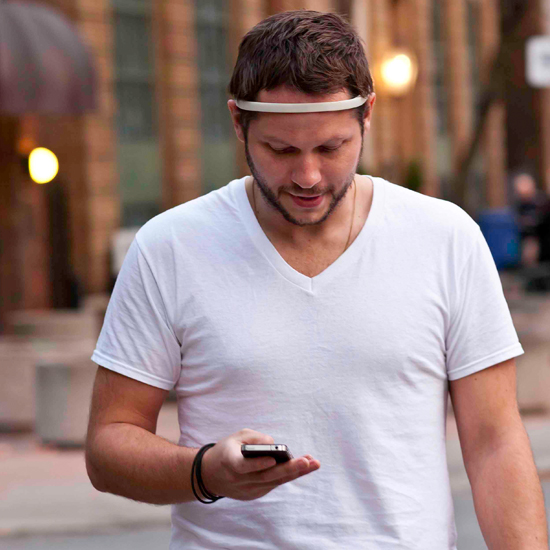
Wearable tech designed to monitor everything from our heart rate to our sleep patterns is becoming increasingly common. However, one group of inventors want to bring that consumer-friendly approach to wearable tech to the arena of brain wave analysis.
InteraXon is a Canadian company working on introducing a headband called the Muse, a device that uses a four-sensor EEG (electroencephalography) system to monitor your brain wave patterns. For the initial release, the company is offering a Brain Health system app with the Muse that will allow you to wirelessly monitor your brain wave patterns on your smartphone or tablet device (iOS and Android), as well as on Windows, Mac and Linux desktops. InteraXon is also offering a software development kit for the device to allow other software engineers to build applications that might allow the Muse to be used as a control interface in the future.
Currently, the Muse is looking for production financing on Indiegogo, where it has already received a great deal of support.
The device is slated for release in 2013 for $200, but in the meantime,
you can check out a more in-depth explanation of the technology at InteraXon.
Thursday, November 08. 2012
TouchDevelop Now Available as Web App
Via Technet
-----

If you’re a software developer—or if you follow the work of software developers—you’ve probably heard of TouchDevelop,
a Microsoft Research app that enables you to write code for your phone
using scripts on your phone. Its ability to bring the excitement of
programming to Windows Phone 7 has reaped lots of enthusiasm from the
development community over the past year or so.
Now, the team behind TouchDevelop has taken things a step further, with a web app that can work on any Windows 8
device with a touchscreen. You can write Windows Store apps simply by
tapping on the screen of your device. The web app also works with a
keyboard and mouse, but the touchscreen capability means that the
keyboard is not required. To learn more, watch this video.
This reimplementation of TouchDevelop went live just in time for Build,
Microsoft’s annual conference that helps developers learn how to take
advantage of Windows 8. The conference is being held Oct. 30-Nov. 2 in
Redmond, Wash.
“Just as users could turn their scripts into Windows Phone apps,” says Nikolai Tillmann, principal research software-design engineer with the Research in Software Engineering (RiSE) team at Microsoft Research Redmond, “we will also allow our users to turn their scripts into Windows Store apps.”
The TouchDevelop web app, which requires Internet Explorer 10,
enables developers to publish their scripts so they can be shared with
others using TouchDevelop. As with the Windows Phone version, a
touchdevelop.com cloud service enables scripts to be published and
queried, and when you log in with the same credentials, all of your
scripts are synchronized between all your platforms and devices.
While
in the TouchDevelop web app, users can navigate to the properties of an
installed script already created. Videos describing editor operation of
the TouchDevelop web app are available on the project’s webpage.
TouchDevelop shipped as a Windows Phone app about a year and a half ago and has seen strong downloads and reviews in the Windows Phone Store.
“Our
TouchDevelop app for Windows Phone has been downloaded more than
200,000 times,” Tillmann says, “and more than 20,000 users have logged
in with a Windows Live ID or via Facebook.”
Since
the app became available, Tillmann and his RiSE colleagues have been
astounded by the creativity the user base has demonstrated. Further
Windows 8 developer excitement will be on display during Build, which is being streamed to audiences worldwide.
Monday, November 05. 2012
Android 4.2 Announced: Photo Sphere, Gesture Typing, Multi-User, TV Connect, Quick Settings, and Much More!
Via xda developpers
-----
Retaining the code name from Android 4.1, 4.2 is a revamped version of Jelly Bean. Despite the lack of name change, 4.2 offers various new and exciting features. Join us as we take a closer look at some of the highlights!
Photo Sphere and Camera UI Improvements
Not too long ago, Google gave us native support for panoramic photos with the launch of ICS. However, in their eyes, a standard panoramic shot doesn’t properly convey the feeling of actually being there. Photo Sphere takes us one step closer.

Once Photo Sphere mode is enabled, the app first guides you as you move your device to capture the entire scene. By using the same technology employed by Google Maps Street View, Photo Sphere then stitches the shots into a 360-degree view that allows you to pan and zoom, as you would in Street View. Those wishing to look at photo spheres from photographers around the would can do so as well.
In addition to Photo Sphere, the Camera app’s UI also been updated with gesture controls. Thanks to the gestures, the interface no longer obscures the photo being taken with various controls. Instead, the app now makes full use of the screen real estate so that you can take better photos.
Gesture Typing
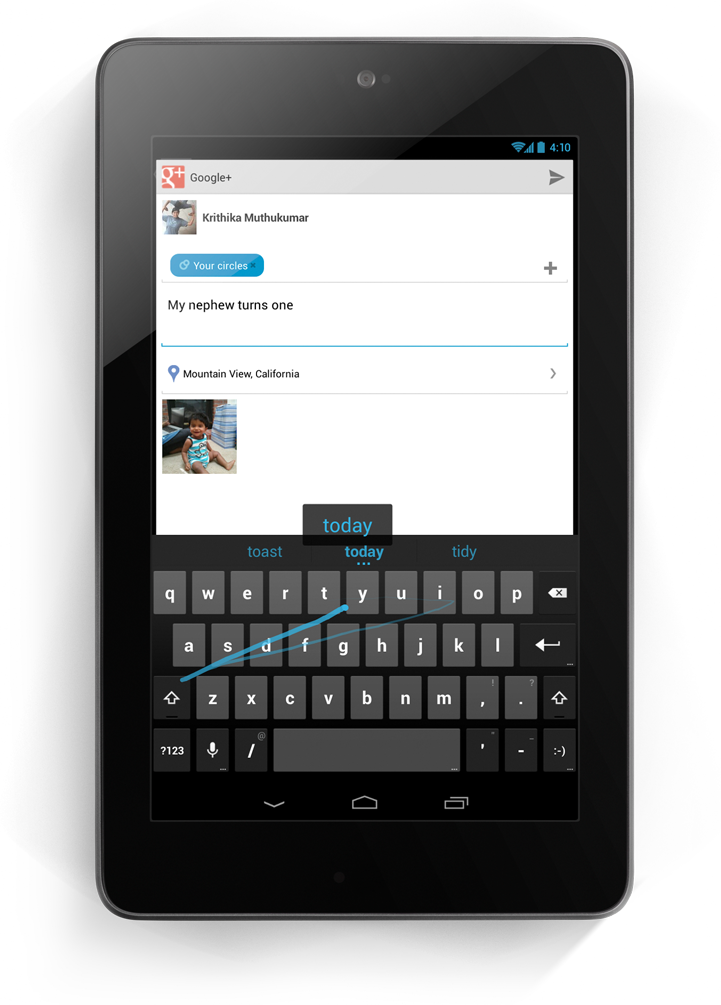
Taking a page from Swype’s play book, the new keyboard built into Android 4.2 has slide gesture functionality. The heavily revised keyboard differentiates itself from current versions of Swype, however, by showing predictions in real time, as you slide around your fingers.
This isn’t the first time we’ve seen real time gesture recognition—dubstep aside. That said, the interface looks to be better on Google’s latest offering, but the real test will be in actual day to day usage. The dictionaries have also been updated, as has voice recognition.
Multi-User

Remember all the buzz about enabling multi-user support on Android? Apparently, Google does too. We all knew this was coming; it was only a matter of “when.”
Well, it’s finally here. Multi-User support has finally made its way to the OS officially. Each user is given his or her own personal space, complete with a customized home screen, background, widgets, apps, and games. While we don’t have access to the source code to verify, this is likely accomplished by sectioning off the /data partition between users. Interestingly, switching between user profiles is done via fast user switching, rather than completely logging in and out.
Naturally, this feature is only available / practical on tablets, but you can bet your bacon that this will find its way to phones in the coming months, after 4.2 is released to AOSP.
TV Connect
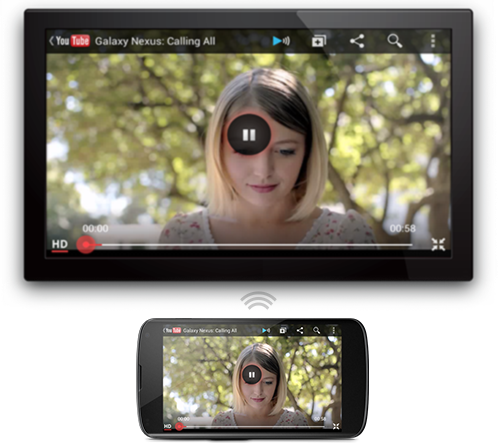 Many were disappointed to learn that the Nexus Q was only able to stream Google Play content rather
than supporting full device mirroring. Problem, no more. In Android
4.2, users will be able to wirelessly mirror their displays to various
supported devices.
Many were disappointed to learn that the Nexus Q was only able to stream Google Play content rather
than supporting full device mirroring. Problem, no more. In Android
4.2, users will be able to wirelessly mirror their displays to various
supported devices.
While we can’t speak in regards to additional functionality for Google’s enigmatic black orb, we can say that this will truly be a useful feature if executed properly. The underlying technology is the new industry standard Miracast, which was created by the Wi-Fi Alliance, and is based on Wi-Fi Direct.
DayDream

A fun, new feature present in 4.2 allows your device to display photo albums, news, and more when your device is docked.
Quick Settings
Remember AP’s video showing the “future site of quick settings?” It’s finally here. Google has now added a separate panel to the notification bar that can be accessed by a two-finger swipe from the top of the screen or simple button tap in the upper right corner if the notification tray is extended. Once summoned, it gives you quick access to user accounts, brightness, device settings, WiFi, Airplane Mode, Bluetooth, Battery, and Wireless Display.
Lock Screen Widgets
Much as we have seen in third party applications, Android now natively supports widgets on the lock screen. In fact, you can now add several pages of widgets to your device’s lock screen, essentially giving you a home screen—before you get to your home screen. Memetastic.
Enhanced Google Now
Google Now was also updated with more cards. A good example of this is how the software can pick out shipping updates and flight details from your email, and display them in a context-relevant manner. This, however, is not exclusively tied with the updated OS, as those with devices running 4.1 can access the update today.
Friday, November 02. 2012
U.S. looks to replace human surveillance with computers
Via c|net
-----
Security cameras that watch you, and predict what you'll do next, sound like science fiction. But a team from Carnegie Mellon University says their computerized surveillance software will be capable of "eventually predicting" what you're going to do.

Computerized surveillance can predict what people will do next -- it's called "activity forecasting" -- and eventually sound the alarm if the action is not permitted. Click for larger image.
(Credit: Carnegie Mellon University)Computer software programmed to detect and report illicit behavior could eventually replace the fallible humans who monitor surveillance cameras.
The U.S. government has funded the development of so-called automatic video surveillance technology by a pair of Carnegie Mellon University researchers who disclosed details about their work this week -- including that it has an ultimate goal of predicting what people will do in the future.
"The main applications are in video surveillance, both civil and military," Alessandro Oltramari, a postdoctoral researcher at Carnegie Mellon who has a Ph.D. from Italy's University of Trento, told CNET yesterday.
Oltramari and fellow researcher Christian Lebiere say automatic video surveillance can monitor camera feeds for suspicious activities like someone at an airport or bus station abandoning a bag for more than a few minutes. "In this specific case, the goal for our system would have been to detect the anomalous behavior," Oltramari says.
Think of it as a much, much smarter version of a red light camera: the unblinking eye of computer software that monitors dozens or even thousands of security camera feeds could catch illicit activities that human operators -- who are expensive and can be distracted or sleepy -- would miss. It could also, depending on how it's implemented, raise similar privacy and civil liberty concerns.

Alessandro Oltramari, left, and Christian Lebiere say their software will "automatize video-surveillance, both in military and civil applications."
(Credit: Carnegie Mellon University)A paper (PDF) the researchers presented this week at the Semantic Technology for Intelligence, Defense, and Security conference outside of Washington, D.C. -- today's sessions are reserved only for attendees with top secret clearances -- says their system aims "to approximate human visual intelligence in making effective and consistent detections."
Their Army-funded research, Oltramari and Lebiere claim, can go further than merely recognizing whether any illicit activities are currently taking place. It will, they say, be capable of "eventually predicting" what's going to happen next.
This approach relies heavily on advances by machine vision researchers, who have made remarkable strides in last few decades in recognizing stationary and moving objects and their properties. It's the same vein of work that led to Google's self-driving cars, face recognition software used on Facebook and Picasa, and consumer electronics like Microsoft's Kinect.
When it works well, machine vision can detect objects and people -- call them nouns -- that are on the other side of the camera's lens.
But to figure out what these nouns are doing, or are allowed to do, you need the computer science equivalent of verbs. And that's where Oltramari and Lebiere have built on the work of other Carnegie Mellon researchers to create what they call a "cognitive engine" that can understand the rules by which nouns and verbs are allowed to interact.
Their cognitive engine incorporates research, called activity forecasting, conducted by a team led by postdoctoral fellow Kris Kitani, which tries to understand what humans will do by calculating which physical trajectories are most likely. They say their software "models the effect of the physical environment on the choice of human actions."
Both projects are components of Carnegie Mellon's Mind's Eye architecture, a DARPA-created project that aims to develop smart cameras for machine-based visual intelligence.
Predicts Oltramari: "This work should support human operators and automatize video-surveillance, both in military and civil applications."
Quicksearch
Popular Entries
- The great Ars Android interface shootout (131621)
- Norton cyber crime study offers striking revenue loss statistics (102656)
- MeCam $49 flying camera concept follows you around, streams video to your phone (100649)
- Norton cyber crime study offers striking revenue loss statistics (58885)
- The PC inside your phone: A guide to the system-on-a-chip (58848)


